Download Deadlock Mod Manager
Browse, install, and organize cosmetic mods for Valve’s Deadlock. One-click setup from GameBanana with automatic game detection and mod updates.
What Is Deadlock Mod Manager?
A free, open-source tool that makes installing and managing cosmetic mods for Valve’s Deadlock straightforward and fast.
Deadlock Mod Manager is a desktop application built specifically for players who want to customize their experience in Valve’s Deadlock. Developed by Stormix and released under the GNU General Public License v3.0, this mod manager connects directly to GameBanana — the largest modding repository for Deadlock — and lets you browse, install, enable, and disable mods without ever touching a game file manually.
The app is built with Tauri, React, TypeScript, and Vite, which means it runs natively on your machine rather than through a browser. The result is a responsive, lightweight mod manager that starts quickly and uses minimal system resources while running in the background.
Why Players Use It
Before Deadlock Mod Manager existed, installing mods meant downloading VPK files from GameBanana, navigating to the correct Deadlock directory, and placing files in the right folder — then reversing the process when you wanted to disable something. This tool eliminates all of that. You search for a mod, click install, and the manager handles file placement, version tracking, and updates automatically.
As of early 2025, the Deadlock modding community has produced over 3,000 mods with more than 12.4 million total downloads. Deadlock Mod Manager itself has been downloaded over 128,000 times.
Cross-Platform and Always Current
Deadlock Mod Manager runs on Windows 10/11 and Linux (with an AUR package for Arch users). The application checks for updates on launch, so you always run the latest version without manual re-downloading. Version v0.15.0, released February 23, 2025, introduced improved mod compatibility checks and a refined download queue system.
The mod manager also includes a built-in VPK analyzer, profile management for switching between mod sets, and full theme support with both light and dark modes. Whether you want a single crosshair replacement or a full cosmetic overhaul, Deadlock Mod Manager keeps your setup organized and easy to manage.
Key Features
Everything you need to discover, install, and organize Deadlock mods in one place.
Integrated Mod Browser
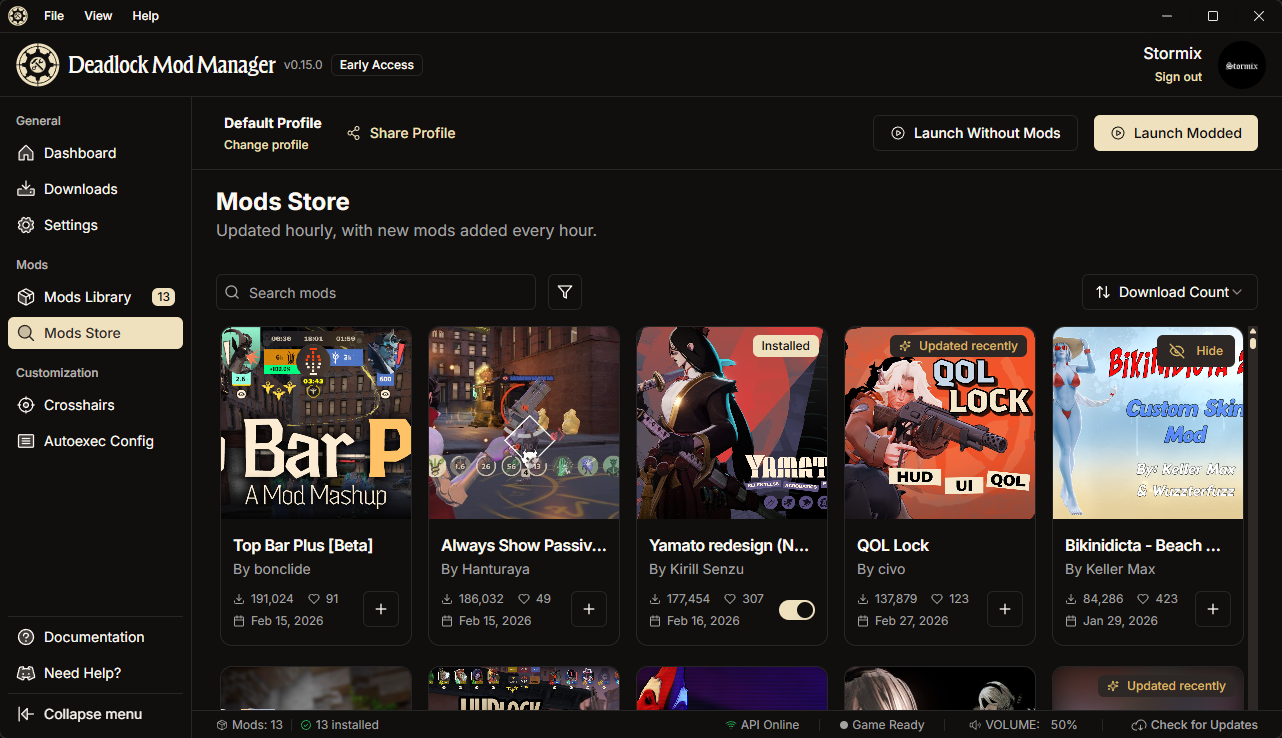
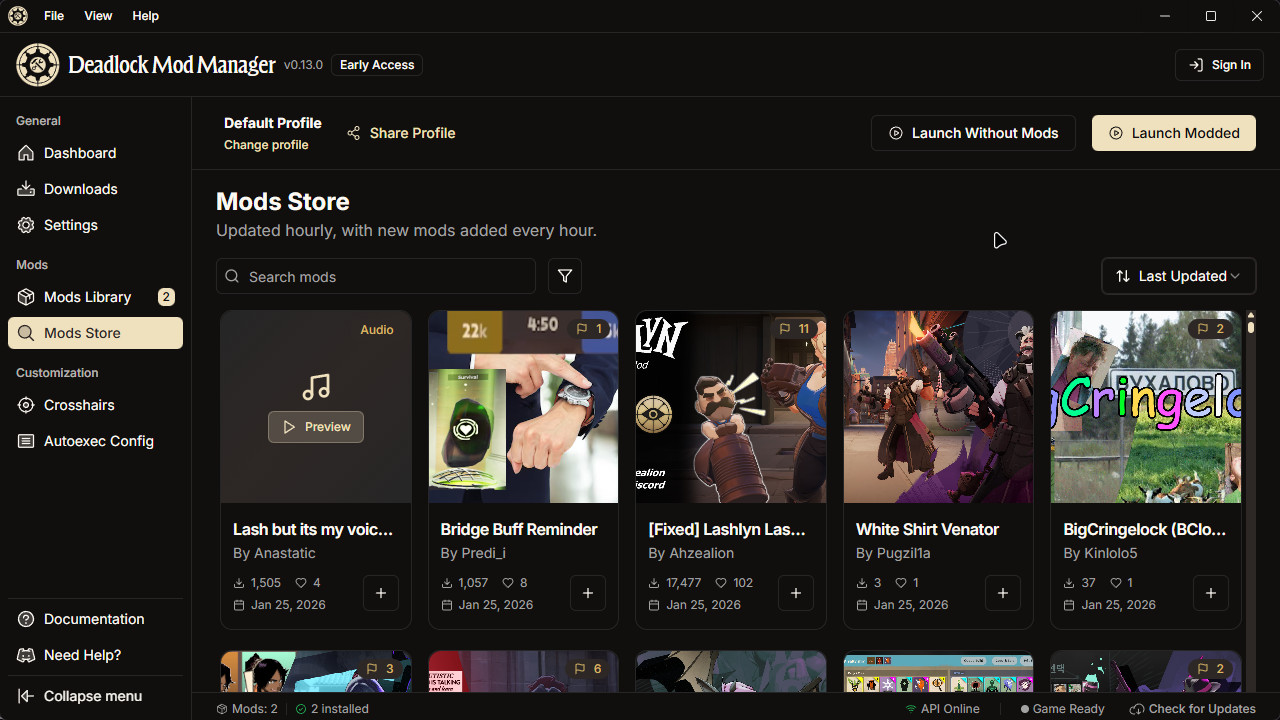
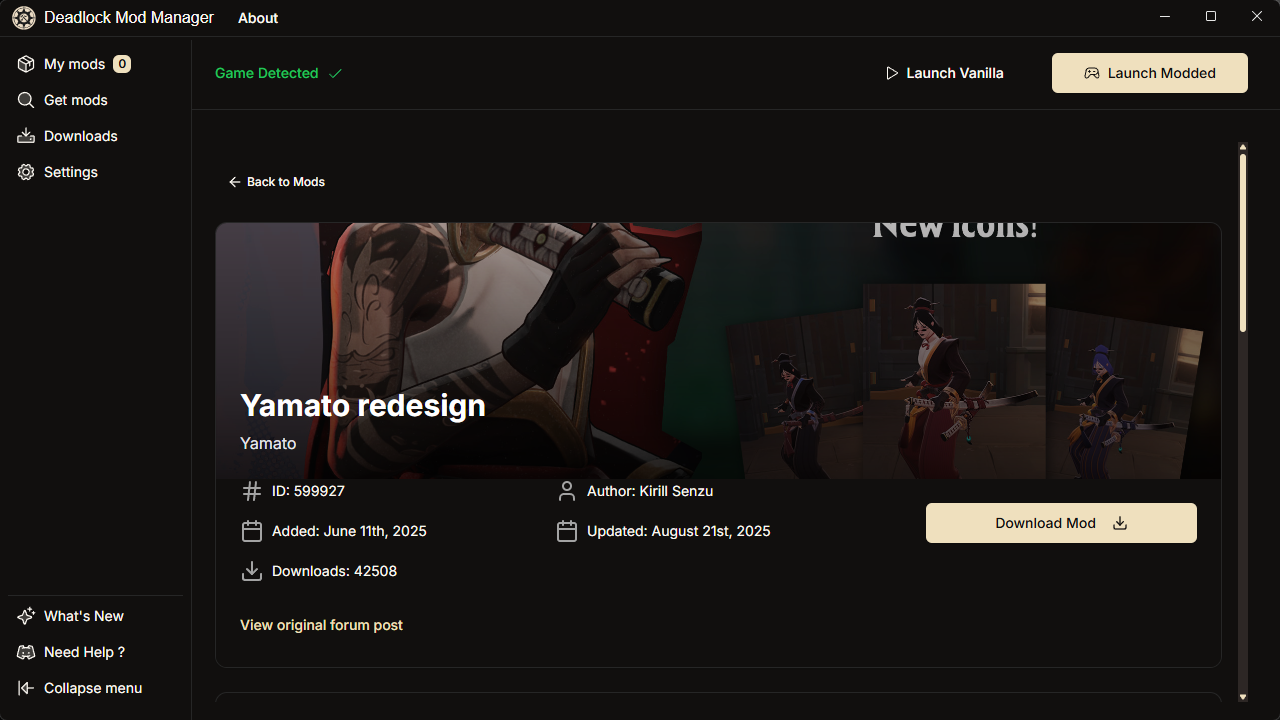
Browse the entire GameBanana catalog directly inside the app. Search by mod name, author, or category. Filter results by popularity, date, or rating. Preview mod descriptions, screenshots, and changelogs before installing — no need to open a web browser.
One-Click Installs
Found a mod you like? Hit the install button and Deadlock Mod Manager handles the download, extraction, and file placement. VPK files go exactly where they belong with zero manual work.
Enable and Disable Mods
Toggle any installed mod on or off without deleting it. Useful for troubleshooting conflicts or quickly switching between different cosmetic setups before a match.
Download Queue
Queue up multiple mods and let them download in sequence. A progress bar tracks each download, and completed mods are installed automatically as soon as they finish.
Auto-Detect Deadlock Installation
The manager scans your system for existing Deadlock installations on first launch. It identifies the correct game directory, verifies the mod folder structure, and sets up file paths so mods install to the right location every time. No manual configuration needed for standard Steam installations.
Profile Management
Create multiple mod profiles and swap between them instantly. Build a competitive profile with minimal mods and a casual profile with full cosmetic overhauls. Share profiles with friends via export.
Automatic Updates
The app checks for new versions on startup and applies updates without interrupting your workflow. Mod updates from GameBanana are detected and flagged so you can upgrade individual mods when new versions drop.
VPK Analyzer
Inspect the contents of any VPK mod file before or after installation. See which game assets the mod replaces, check for conflicts with other installed mods, and verify file integrity.
Cross-Platform Support
Runs natively on Windows 10/11 and Linux. Arch Linux users can install from the AUR. Built with Tauri for small binary size and low resource usage.
Light and Dark Themes
Switch between light and dark interface themes to match your desktop environment. The dark theme reduces eye strain during late-night modding sessions, while the light theme keeps things clean during the day.
System Requirements
Deadlock Mod Manager is lightweight and runs on most modern systems.
| Component | Minimum | Recommended |
|---|---|---|
| Operating System | Windows 10 64-bit | Windows 11 64-bit |
| Linux | Ubuntu 20.04 / Fedora 34 | Ubuntu 22.04+ / Arch Linux |
| Processor | Any x86_64 or ARM64 CPU | Multi-core processor |
| RAM | 4 GB | 8 GB |
| Disk Space | 200 MB (app only) | 1 GB+ (app + mods) |
| Internet | Required for mod downloads | Broadband for faster queue |
| Game | Deadlock (Steam) | Deadlock (Steam, latest update) |
Deadlock Mod Manager v0.15.0 is approximately 85 MB. The app itself is lightweight; disk space needs grow depending on how many mods you install.
Download Deadlock Mod Manager
Get the latest version for your platform. Free, open-source, and always up to date.
Screenshots
See Deadlock Mod Manager in action.
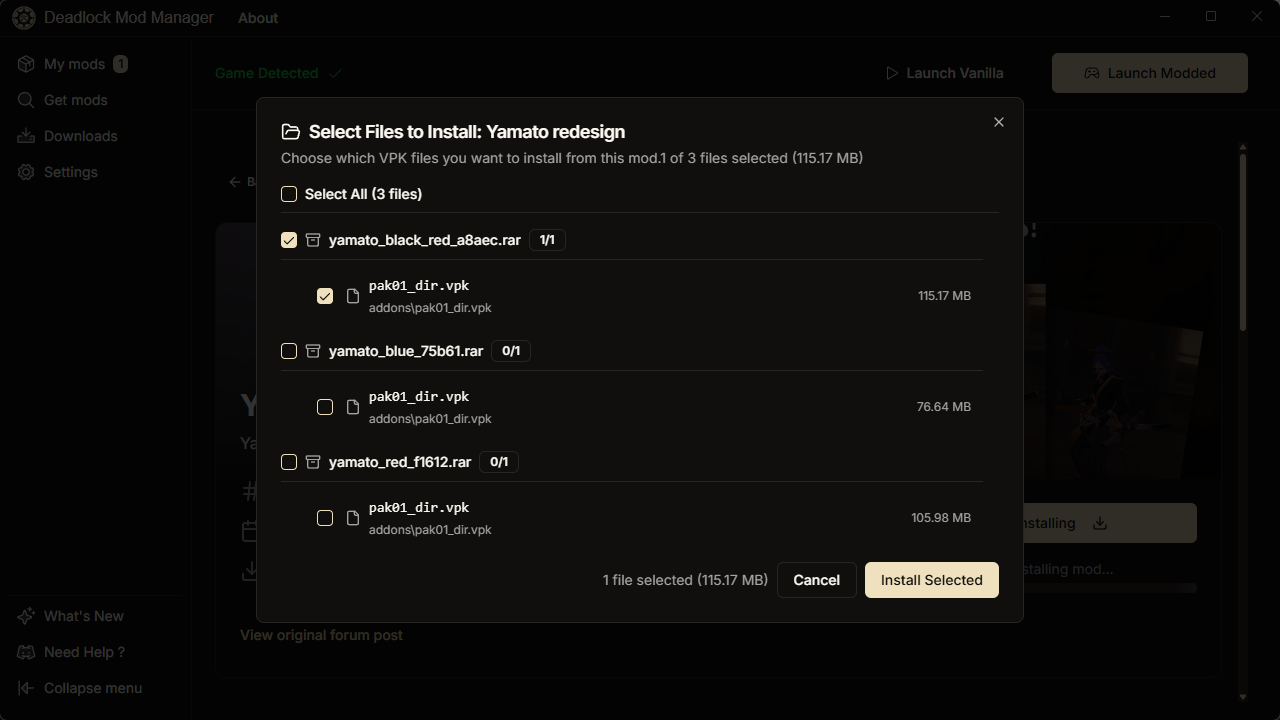
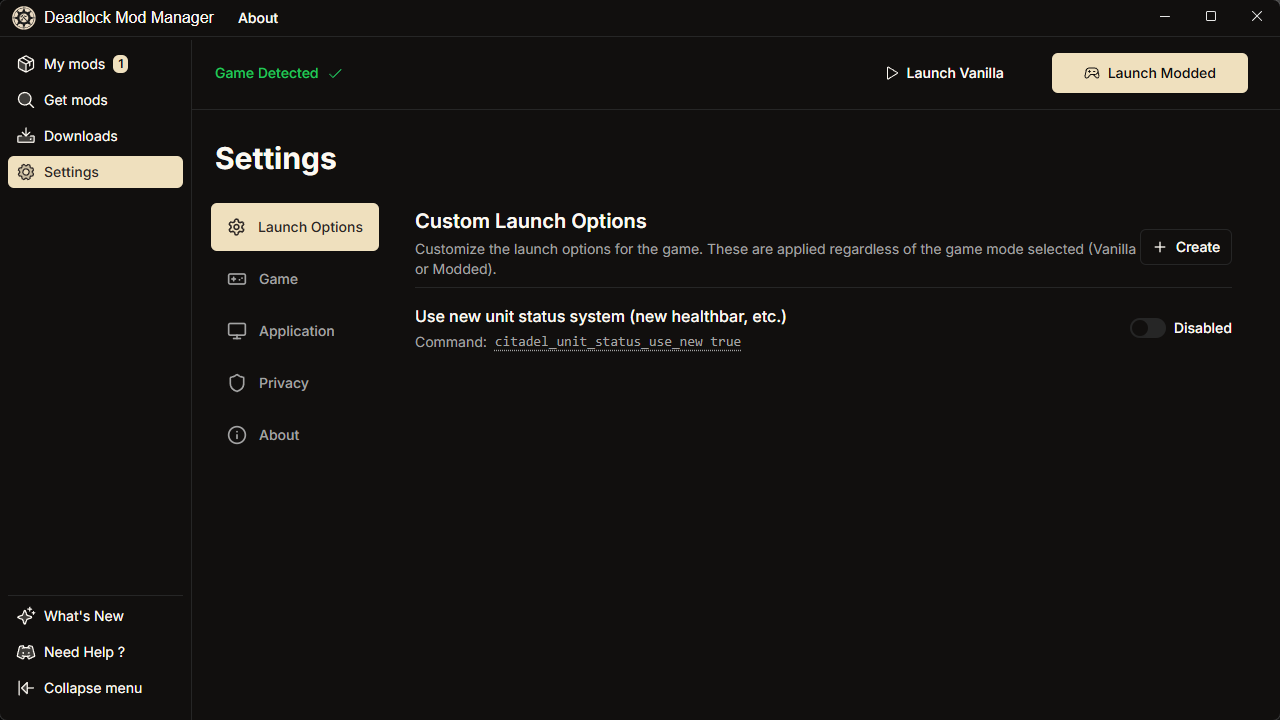
Getting Started with Deadlock Mod Manager
From download to your first installed mod in under five minutes.
Downloading Deadlock Mod Manager
Head to our download section and grab the installer for your operating system. Windows users get a standard .exe installer at roughly 85 MB. Linux users have the most options: .deb packages for Ubuntu and Debian, .rpm for Fedora and RHEL, AppImage for distro-agnostic installation, and an AUR package for Arch Linux.
If you are not sure which version to pick, go with the Windows .exe for the simplest installation experience. On Linux, the AppImage is a good default choice since it runs on virtually any distribution without additional dependencies.
The download should take under a minute on a standard broadband connection. The file is signed by the developer, so your browser and operating system should not flag it as suspicious.
Installation Walkthrough
Windows: Double-click the downloaded .exe file. If Windows SmartScreen shows a warning (this happens because the app is relatively new and not signed with a paid certificate), click “More info” and then “Run anyway.” The installer asks where you want to install the app — the default location in your AppData folder works well. Click through the setup wizard. No additional checkboxes to untick; the installer is clean with no bundled toolbars or extras.
Linux: For .deb packages, run:
For AppImage files, make the file executable with chmod +x and run it directly. Arch users can install from the AUR:
After installation, the app creates a desktop shortcut on Windows and registers itself in your application menu on Linux. Launch the app — it starts in about two seconds on most hardware.
Initial Setup and Configuration
On first launch, Deadlock Mod Manager scans your system for Deadlock installations. If you installed the game through Steam in the default location, the app finds it automatically and displays a confirmation message showing the detected path. If the game is on a different drive or in a custom Steam library folder, click “Browse” and navigate to the Deadlock directory manually.
Once the game directory is confirmed, take a moment to explore the Settings panel. Key settings worth checking on first run:
- Theme: Toggle between light and dark mode under Settings > Appearance
- Download path: By default, mods are stored alongside the app. You can change this to a folder on a drive with more space if needed
- Auto-update: Enabled by default. The app checks for updates on every launch and prompts you to install them
- GameBanana integration: Already configured out of the box. The Browse tab connects to GameBanana’s API to pull the latest mod listings
If you have been modding Deadlock manually before, you can point the mod manager to your existing mods folder. It scans and imports VPK files it recognizes, adding them to your managed mod list so everything is in one place going forward.
Installing Your First Mod
With the setup done, click the Browse tab in the sidebar. You will see the GameBanana mod catalog loaded directly in the app, sorted by popularity by default. Each mod card shows a thumbnail, the mod name, author, download count, and a brief description.
Let us walk through installing a crosshair mod as an example:
- Use the search bar at the top to type “crosshair” or browse the Crosshairs category
- Click on a mod that interests you to see its full description, screenshots, and changelog
- Click the Install button. The mod enters your download queue and begins downloading immediately
- Once the download finishes (you can watch progress in the Queue tab), the mod is automatically extracted and placed in your Deadlock mods directory
- The mod appears in your My Mods tab with a green toggle showing it is active
Launch Deadlock and the mod is active right away. No game restart needed in most cases, though some mods that replace core assets may require closing and reopening the game.
Want to try a different crosshair instead? Go to My Mods, toggle off the current one, and install a new option. You can have multiple crosshair mods installed with only one enabled at a time — the manager handles the switching cleanly.
Tips, Tricks, and Best Practices
Use profiles for different setups. Create a “Ranked” profile with minimal or no cosmetic mods, and a “Casual” profile loaded with skins, sound packs, and UI tweaks. Switch between them in two clicks from the Profiles tab.
Check for mod updates regularly. Open the My Mods tab and look for update indicators next to mod names. GameBanana authors frequently push fixes and improvements, especially after Deadlock game patches that can break older mods.
Disable mods before major game updates. When Deadlock receives a large patch, some mods may become incompatible. Disable all mods before the update, then re-enable them one at a time to identify any that cause issues.
Explore the VPK Analyzer. This tool lets you peek inside any .vpk file to see exactly which game textures, models, or sounds it modifies. Power users rely on this to build custom mod combinations that do not conflict.
Join the community. The project is active on GitHub where you can report bugs, suggest features, and contribute code. The GameBanana page for Deadlock Mod Manager also has a comments section where users share tips and ask for help.
Frequently Asked Questions
Answers to common questions about Deadlock Mod Manager.
Is Deadlock Mod Manager free to download?
Yes, Deadlock Mod Manager is completely free to download and use. The project is released under the GNU General Public License v3.0, which means the source code is publicly available on GitHub and anyone can inspect, modify, or contribute to it. There are no premium tiers, no paid features, and no subscription required.
The developer, Stormix, maintains the project as an open-source community effort. All features — including the mod browser, download queue, profile management, and VPK analyzer — are available to every user at no cost. There are no ads within the application either.
Pro tip: Since the project is community-driven, consider starring the GitHub repository or reporting bugs you encounter. Active community participation helps keep the tool maintained and improved.
You can grab the latest version from our download section.
Is Deadlock Mod Manager safe for Windows 11?
Deadlock Mod Manager is safe to use on Windows 11. The application is open-source under GPLv3, meaning its entire codebase is publicly auditable on GitHub. It has been downloaded over 128,000 times with no reports of malware, data collection, or system damage.
The app is built with Tauri, a modern framework that runs a lightweight Rust backend paired with a web-based frontend. It does not inject code into Deadlock’s process, does not modify system files, and does not require administrator privileges for normal operation. The only files it touches are VPK mod files inside your Deadlock game directory.
Windows SmartScreen may show a warning on first launch because the installer does not use an Extended Validation (EV) code-signing certificate. This is normal for independent open-source projects. Click “More info” then “Run anyway” to proceed safely.
- Source code is public and auditable at any time
- Built with Tauri (Rust) — no hidden processes or background services
- Does not access personal files, browser data, or system settings
- GameBanana integration uses their official public API
Pro tip: If you want extra assurance, download the source from GitHub and build it yourself. Build instructions are in the repository README.
Check our system requirements for full compatibility details.
What are the system requirements for Deadlock Mod Manager?
Deadlock Mod Manager runs on Windows 10/11 (64-bit) and most modern Linux distributions. The app itself uses around 200 MB of disk space and requires minimal RAM — 4 GB is the practical minimum, with 8 GB recommended if you plan to browse and download large numbers of mods simultaneously.
Since the application is built with Tauri and React, it runs efficiently without the overhead of a full Electron runtime. CPU usage stays low even with multiple mods downloading in the background. You need a working internet connection to browse and download mods from GameBanana.
The one hard requirement is having Deadlock installed via Steam. The mod manager needs access to the game’s file directory to place and manage VPK mod files. Without Deadlock installed, the app can still run but will prompt you to set the game directory manually.
Pro tip: If you store your Steam library on a secondary drive, the mod manager will still find it — but you may need to point to the correct path during initial setup.
See the full breakdown in our system requirements table.
How do I install Deadlock Mod Manager?
Installation takes about two minutes on any platform. Download the installer for your operating system from our download section, run it, and follow the setup wizard.
Here is the process for each platform:
- Windows: Run the .exe installer, accept the default install location (or choose your own), and click Install. The app is ready to launch immediately
- Linux (Debian/Ubuntu): Run
sudo dpkg -i deadlock-mod-manager.debin your terminal - Linux (Arch): Install via AUR with
yay -S deadlock-mod-manager - Linux (AppImage): Make the file executable with
chmod +xand run it directly
The installer does not bundle any third-party software, toolbars, or browser extensions. What you download is exactly what you get.
Pro tip: Keep the installer file after installation. If you ever need to do a clean reinstall, you can skip the download step.
For a detailed walkthrough, check our Getting Started guide.
Does Deadlock Mod Manager work on Linux?
Yes, Deadlock Mod Manager has full Linux support in addition to Windows. The application is built with Tauri, which compiles native binaries for each platform rather than running through a compatibility layer.
Linux support covers the major distributions through multiple package formats:
- .deb for Ubuntu, Debian, Linux Mint, and derivatives
- .rpm for Fedora, RHEL, CentOS, and openSUSE
- AppImage for any distribution without package manager dependency
- AUR package for Arch Linux and Manjaro users
Pro tip: On Linux, make sure you have WebKit2GTK installed as a dependency since Tauri-based apps require it for rendering the UI.
Download the version for your OS from our download section.
How do I update Deadlock Mod Manager to the latest version?
Deadlock Mod Manager checks for updates automatically every time you launch the app. When a new version is available, a notification appears prompting you to download and install the update. The update process typically takes under a minute and preserves all your installed mods, profiles, and settings.
If you prefer to update manually, visit our download section and download the latest installer. Running the new installer over an existing installation upgrades the app without removing your configuration or mod library.
The current version is v0.15.0, released on February 23, 2025. You can check your installed version by opening Settings and scrolling to the About section. The app also displays the version number in the title bar.
Pro tip: Follow the project’s GitHub releases page to get notified about new versions and read detailed changelogs before updating. Major updates sometimes introduce new features that require checking your mod compatibility.
Learn more about keeping the app current in our Getting Started guide.
Where is the official download for Deadlock Mod Manager?
The official download for Deadlock Mod Manager is available at deadlockmods.app, the project’s official website. You can also download it directly from the GitHub releases page or the GameBanana tool page.
We recommend downloading from our download section, which links directly to the official release files. Avoid third-party download aggregator sites (like Softonic, CNET Downloads, or FileHippo) as they sometimes bundle unwanted software with their installers or serve outdated versions.
To verify you have an authentic download, you can compare the file hash against the checksums published on the GitHub releases page. Each release includes SHA-256 hashes for all platform binaries.
Pro tip: Bookmark the GitHub releases page if you want to be notified about every new version through GitHub’s Watch feature.
How to fix Deadlock Mod Manager not working or crashing?
If Deadlock Mod Manager is not launching or crashing on startup, here are the most common fixes arranged from simplest to most thorough:
- Restart the app: Close it completely (check the system tray on Windows) and relaunch. Many startup glitches resolve with a fresh launch
- Update to the latest version: Older versions may have bugs that are already fixed. Download v0.15.0 or newer from our download section
- Check your internet connection: The app requires internet access to load the mod browser. If your connection is unstable, the Browse tab may fail to load
- Delete the cache: On Windows, navigate to
%APPDATA%/deadlock-mod-managerand delete the cache folder. Restart the app - Verify Deadlock is installed: The app needs to detect a valid Deadlock installation. If you moved or reinstalled the game, re-point the mod manager to the correct directory in Settings
- Reinstall the app: Uninstall, download a fresh copy from our download page, and install again. Your mods stay in the Deadlock directory and are re-detected on launch
On Linux, crashes are sometimes caused by missing WebKit2GTK libraries. Install the dependency with your package manager (e.g., sudo apt install libwebkit2gtk-4.1-dev on Ubuntu).
Pro tip: Check the GitHub Issues page for known bugs matching your symptoms. The development team and community are active and usually respond within a few days.
Can I get banned for using Deadlock Mod Manager?
As of early 2025, Valve has not issued bans for using cosmetic mods in Deadlock. The mods managed by Deadlock Mod Manager are purely cosmetic — they change visual elements like crosshairs, hero skins, UI themes, and sound effects. They do not modify gameplay mechanics, give competitive advantages, or interact with Valve Anti-Cheat (VAC).
Deadlock Mod Manager works by placing VPK files in the game’s mod directory, which is a standard Source 2 engine feature. The game reads these files as cosmetic overrides, similar to how community mods work in other Valve titles like Dota 2 and Counter-Strike.
That said, modding policies can change at any time. Here are some guidelines to stay safe:
- Only install cosmetic mods that change visuals, sounds, or UI elements
- Avoid mods that claim to modify gameplay, hitboxes, or player visibility
- Keep your mod manager and mods updated, as older mods may conflict with game patches
- Watch for official Valve announcements regarding Deadlock modding policy
Pro tip: The Deadlock modding community on GameBanana self-moderates aggressively. Mods that attempt to modify gameplay are flagged and removed quickly by the community and site moderators.
Review the feature list to understand exactly what the mod manager does and does not do.
How do I uninstall Deadlock Mod Manager completely?
Uninstalling Deadlock Mod Manager is straightforward on every platform. The app leaves minimal traces on your system.
Windows: Open Settings > Apps > Installed Apps, find Deadlock Mod Manager in the list, and click Uninstall. Alternatively, run the uninstaller from the app’s installation folder. To remove configuration files as well, delete the folder at %APPDATA%/deadlock-mod-manager.
Linux: Use your package manager: sudo apt remove deadlock-mod-manager for .deb installs, or sudo pacman -R deadlock-mod-manager for AUR installs. For AppImage, simply delete the AppImage file.
Uninstalling the mod manager does not remove mods from your Deadlock game directory. If you want to remove all mods too, navigate to your Deadlock installation folder and delete the contents of the mods/addons directory.
Pro tip: Before uninstalling, export your mod profiles from the Profiles tab. If you reinstall later, you can import them to restore your exact setup.
Does Deadlock Mod Manager work offline?
Partially. The core mod management features work without an internet connection — you can enable, disable, and switch between mods that are already installed. Profile switching also works offline since it only rearranges local files.
However, you need an internet connection for:
- Browsing mods: The mod catalog loads from the GameBanana API, which requires internet access
- Downloading mods: Mod files are fetched from GameBanana servers
- Checking for updates: Both app updates and mod updates require connectivity
- Profile sharing: Exporting and importing profiles to/from online sources
If your internet drops mid-download, the download queue pauses and resumes automatically when connectivity returns. Partially downloaded files are cached, so you do not lose progress.
Pro tip: Download all the mods you want while connected, then you can manage them freely offline — perfect for laptops or travel setups.
See how to install mods in our Getting Started guide.
What types of mods can I install with Deadlock Mod Manager?
Deadlock Mod Manager supports all cosmetic mod types available on GameBanana for Deadlock. The GameBanana catalog for Deadlock currently includes over 3,000 mods across several categories:
- Hero skins: Custom textures and models for playable characters
- Crosshairs: Alternative crosshair designs, colors, and animations
- UI themes: Modified in-game HUD elements, menus, and interface components
- Sound packs: Custom kill sounds, ability sounds, and ambient effects
- Weapon skins: Alternative weapon models and textures
- Map visuals: Modified map textures and environmental effects
- Miscellaneous: Loading screens, cursor replacements, font changes
All mods are VPK format, which is the standard Valve mod packaging format used across Source 2 engine games. The mod manager handles VPK extraction and file placement automatically.
The manager does not support gameplay-altering mods, cheat tools, or scripts that interact with the game process. It is strictly limited to cosmetic file replacements.
Pro tip: Use the category filters in the Browse tab to narrow down exactly the type of mod you want. Sorting by “Most Downloaded” shows the community’s most popular and well-tested options.
Explore all capabilities in our features section.
Deadlock Mod Manager vs manual mod installation – which is better?
Deadlock Mod Manager is significantly faster and safer than manual installation for the vast majority of users. Here is a direct comparison:
Manual installation requires you to download VPK files from GameBanana in your browser, locate your Deadlock game directory (typically buried inside Steam’s common folder), copy files to the correct subdirectory, and keep track of which files belong to which mod. Disabling a mod means finding and deleting specific files. Updating means repeating the entire process.
Deadlock Mod Manager handles all of this with a single click. It auto-detects your game directory, downloads and installs mods to the right location, tracks which mods are installed, and lets you enable/disable any mod with a toggle. Updates are flagged automatically.
The only scenario where manual installation has an advantage is when you want to install a mod file that is not hosted on GameBanana. In that case, you would need to place the VPK file manually. However, GameBanana hosts the overwhelming majority of Deadlock mods.
Pro tip: Even if you prefer manual control, the VPK Analyzer tool alone makes the mod manager worth installing. It lets you inspect mod files before placing them in your game directory.
Get started with automated mod management via our setup guide.
How do I manage mod conflicts in Deadlock Mod Manager?
Mod conflicts happen when two or more mods try to replace the same game file. For example, two different crosshair mods both modify the same crosshair asset. Deadlock Mod Manager helps you identify and resolve these conflicts.
The built-in VPK Analyzer shows exactly which files each mod replaces. When you install a mod that conflicts with an existing one, the manager flags the overlap. You then choose which mod takes priority, and the other is automatically disabled for the conflicting files.
Steps to resolve a conflict:
- Open the My Mods tab and look for conflict warnings (marked with a warning icon)
- Click the conflicting mod to see which files overlap with other installed mods
- Decide which mod you want to keep active for the shared files
- Disable the conflicting mod or remove it if you no longer need it
Using profiles makes conflict management easier. Create separate profiles for different mod combinations that you know work well together. Switching profiles swaps your entire mod setup at once.
Pro tip: Before installing a large mod pack, use the VPK Analyzer to preview its file list and compare it against your currently active mods. Prevention is easier than fixing conflicts after the fact.
Learn about the VPK Analyzer in our features section.
Is Deadlock Mod Manager open source?
Yes, Deadlock Mod Manager is fully open source under the GNU General Public License v3.0. The entire codebase is hosted publicly on GitHub at github.com/deadlock-mod-manager/deadlock-mod-manager.
The tech stack is modern and well-documented: Tauri for the native desktop shell, React with TypeScript for the user interface, Vite for the build system, and shadcn/ui with Tailwind CSS for styling. Contributors can fork the repository, submit pull requests, and file issues.
Being open source provides several practical benefits for end users:
- Transparency: Anyone can audit the code to verify it does not contain malware or telemetry
- Reliability: Bugs are publicly tracked and fixed by the community, not hidden behind closed doors
- Longevity: Even if the original developer steps away, the community can continue maintaining the project
- Build from source: You can compile the app yourself if you prefer not to trust pre-built binaries
Pro tip: If you are a developer, the project uses a clean component architecture that makes it relatively easy to add new features or fix bugs. Check the CONTRIBUTING.md file in the repo for guidelines.
How many mods are available for Deadlock?
As of early 2025, GameBanana hosts over 3,000 mods for Deadlock, with a combined download count exceeding 12.4 million. New mods are added daily by the active modding community, and the count continues to grow as Deadlock gains popularity.
The mod catalog covers all major customization categories. Hero skins make up the largest portion, followed by crosshair replacements and UI modifications. Sound packs and weapon skins are also well-represented. The community is especially active around major Deadlock updates, when modders create new content to match new heroes and maps.
Deadlock Mod Manager gives you access to this entire catalog through its built-in browser, with search, category filters, and sorting by popularity, date, or rating. You do not need to visit GameBanana in your web browser — everything is accessible inside the app.
Pro tip: Sort by “Most Downloaded” to find the community’s most trusted and tested mods. Mods with thousands of downloads have typically been verified by many users and are less likely to cause issues.
Try browsing the catalog by following our Getting Started guide.
What is the VPK Analyzer and how do I use it?
The VPK Analyzer is a built-in tool that lets you inspect the contents of Valve Pak (VPK) files before or after installing them. VPK is the file format Valve uses for packaging game assets in Source 2 engine games like Deadlock.
To use it, open the Tools menu in the sidebar and select VPK Analyzer. You can then open any .vpk file from your computer or select an installed mod from your library. The analyzer displays a tree view of all files contained in the package, showing:
- File names and paths within the VPK archive
- File sizes for each contained asset
- Which game assets the mod replaces (textures, models, sounds)
- Potential conflicts with other installed mods
This tool is particularly valuable when you want to understand exactly what a mod changes before committing to installing it. For advanced users, it helps identify why certain mod combinations cause visual glitches — usually because two mods replace the same texture file.
Pro tip: If you download a VPK file from outside GameBanana and want to verify its safety, run it through the VPK Analyzer first. Check that it only contains asset files (textures, models, sounds) and nothing unusual like executable scripts.
Read more about this and other tools in our features section.
Do mods break after Deadlock game updates?
Some mods can break after major Deadlock updates, but it depends on what the update changes. Minor game patches that add balance tweaks or bug fixes rarely affect cosmetic mods. Larger updates that restructure game assets, add new heroes, or change the UI system are more likely to cause compatibility issues with existing mods.
When a mod does break, the symptoms are usually visual glitches (missing textures, stretched models), missing custom sounds reverting to default, or in rare cases the game failing to load if a mod references a file path that no longer exists in the updated game.
Here is how to handle the situation:
- Disable all mods before a major Deadlock update (toggle them off in the My Mods tab)
- Launch Deadlock and verify the game runs correctly without mods
- Re-enable mods one at a time, launching the game after each to check for issues
- If a mod causes problems, check its GameBanana page for an updated version
- Popular mods are usually updated within 24-48 hours of a game patch
Deadlock Mod Manager flags mods that have updates available on GameBanana. After a game patch, open the My Mods tab and look for update badges. Updating mods that have new versions available often fixes post-patch compatibility issues.
Pro tip: Use the profile feature to create a “vanilla” profile with zero mods enabled. Switch to it before any major game update, then switch back to your modded profile once you have verified compatibility.
Learn how to set up profiles in our Getting Started guide.